Showing posts with label computers. Show all posts

Sunday, April 19, 2015

Apple #708: Behind the Daily Apple -- Constructing a Search Query

After my last entry (on movie trailers), Daily Apple reader Mahalia wanted to know how your Apple Lady does what she does.  As she put it, how does an entry get researched and written, and how do I find the answers to people's questions.

I told her I Google it.

Which made her laugh and say, OK, but it seems like my entries are more focused and thorough than a list of Google results, and there are complementary visuals, too.  So I said I was being flip, that there is more to it than just typing words into a Google search box.

And actually, when I've looked things up for other people, they'll say, "How did you find that?"  I'll show them the search I did, and they'll say, "I wouldn't have thought to do it that way."  I don't think what I do is anything particularly magical, in fact it seems pretty obvious to me, but then, I learned this skill in library science school years and years ago, so at this point, it is second-nature to me.  Not everyone knows how to put together a good search query.  And since that is where every Daily Apple begins, let me start there.


The Google search box. The secret to your Apple Lady's success.


Google

  • There are lots of search engine websites out there -- Google, Bing, Dogpile, Ask, even AOL -- but I search Google.  It's the biggest.  Meaning, Google's web crawlers hit more pages of the internet than anyone else's do.  So with one search, I get results from the highest number of pages possible.
  • Dogpile is a meta-search that searches several search engines at once, so you would think that would get more inclusive results.  But in my experience, Google beats them anyway.  And by "beats them," I mean gives you a wider variety of results which are of better quality.
  • By "better quality," I think that might be best demonstrated when I show you the results of some sample searches.
  • Another reason I like Google is it allows you to use some advanced searching tools, like quotation marks, a symbol that means "or", and it also does automatic truncation.  What I mean by that will become apparent in a bit.

Constructing Your Query

  • The first part of figuring out what to type in the search box is deciding what you're looking for.  This sounds like a "duh" moment, but as in all things, it really does help to define to yourself what you're doing before you doing it.
  • Here's an example.  Once upon a time, a Daily Apple reader Dan asked me to do an entry on disposable lighters.  Specifically, he asked, 
What about doing a daily apple entry about the disposable lighter? i know zippos and other butane lighters have been around for awhile, but what about the plastic disposable Bic? So ubiquitous these days.
  • So I Googled "disposable lighters."  The first thing to note here is that I typed in my search in quotations marks.  As you see it here, I typed into the Google search box "disposable lighters" as opposed to disposable lighters.
  • This is important because the quotation marks mean I've told Google I want it to search for those two words next to each other, as a phrase (a.k.a. phrase searching).  If I had omitted the quotation marks, Google could have returned any results with disposable in one part of the document and lighters anywhere else in the document.  So I could have gotten results that might have had nothing to do with disposable lighters at all.
  • Google is smart enough, though, that even if I had omitted the quotation marks, it would automatically put the hits where disposable is next to lighters at the top of the list.  Not every search engine does that, and this is another reason to prefer Google -- it automatically ranks its results for you so that the results that most closely match what it thinks you want are put at the top of the list.
  • But for our purposes, the results I got from Googling "disposable lighters" weren't the best for putting together a Daily Apple entry.  Which is to say, the things that came up first were all shopping-related.  Links to pages where they're sold on Amazon, and other online stores.  It would be no fun to read a Daily Apple entry on "Where can I buy disposable lighters, and how much do they cost?"  That wouldn't be answering what Dan was asking, either.
  • So how should I narrow the "disposable lighters" field?  Since Dan's question referred to other lighters that had been around for a while, I chose to investigate the history of them -- when were they invented -- and how had they become so popular.
  • So I modified my search to "disposable lighters" history. 
[Editor's note about screenshots: Blogger does not allow screenshots to be copied & pasted into an entry. That would be way too easy.  They must be saved as images & uploaded. Doing that changes all sorts of things about the image -- mainly makes them too small. So if you want to read what the screenshot-images actually say, you have to click on them to see them in an englarged photo viewer. When you're done, click the x in the top right corner of the photo viewer to return to the blog.  Total pain in the behind, I know. But you can thank Blogger for this.]

Today's Google search results for "disposable lighters" history. One of the things I don't like about Google is that they pay their bills by putting paid-for links to product purchases at the top of their search results. This would be like walking up to your friendly local librarian and saying, "I need to know about the history of aspirin," and before telling you where to find information about that, she would whip out a bunch of samples and ask you rapid-fire, "Would you like to buy this aspirin? This other kind of aspirin is very popular, perhaps you would like to buy some of that instead." And you would answer her, "But I just want to know about aspirin."

Google has also taken to providing you with images that match your search results, which can come in very handy sometimes.  For example, if I've seen a type of bird and I type in what I think is its name or else my description of it, those images will show me if I've got the right name for the bird I've seen or will help me choose among slightly different images for the one that matches most closely with the bird I saw, and that will take me to a page that tells me all about that bird.  In other words, the image search sometimes helps me narrow my choices by kind or species.

Finally, please to note the hit that comes up at the bottom, just before the image results.


Natural Language Queries

  • Some people type in their searches as natural language requests, meaning they simply type in the sentence that is their question: when were disposable lighters invented? Or, what is the history of disposable lighters?
  • Back in the day, when online databases were all proprietary and expensive, they worked only literally.  If you typed in a search like that, you would be telling the database to find every instance of the word "what," every instance of the word "is," every instance of the word "the," and so on, and then combine the results to show you only those items that contained each one of the words in that query, regardless of where they happened to appear in the document.  Can you imagine, searching the entire internet for all pages that have the word "is"? 
  • So we online search librarians learned to ask the databases to search for only those words that are the most important.  We would leave out the little, omnipresent words like "is" and "the" and "where."  In fact, some databases got smarter and wouldn't even search for those words. Because they appear so often, it would take the database forever to retrieve them all, and it wouldn't even be that useful to list them.  These little omnipresent words are therefore often referred to as stop words.
  • Let's remove the stop words from our natural language request and see what we've got left: what is the history of disposable lighters?  What remains is history "disposable lighters."  This, by the way is known as a keyword search.  This is the kind of search I do most often.
  • The clever folks at Google have over the past several years made their search engine smart enough to handle natural language requests.  So if you were to type what is the history of disposable lighters into the Google search box now, you would likely get pretty good results.   

Today's results for a natural language search in Google for what is the history of disposable lighters.

  • Well, that's interesting. There are no paid-for links at the top of these results.  There are no Image results, either.  News about Google reports that they've been putting a lot of effort into making their search algorithms even better at processing natural language queries. This is because a) most people tend to type in natural language queries and b) lots of people have smart phones, and they're relying on apps to give them search results in very targeted areas. So Google has to make their search engine competitive and give better, more targeted and focused results for natural language queries.
  • So maybe my technique of using keyword searching is becoming outmoded.  I do use natural language queries occasionally. If a topic is especially arcane and I'm having trouble finding something with just keywords, I will give a natural language query a shot, to see if I get different results, or maybe one hit that's relevant that will give me some more information that I can then use as the basis for another, better search.
  • But based on these results here, maybe I should try the natural language method more often.  But this is only one example, and in general, I feel like I have better control over the results I get with a keyword search, so probably for some time longer at least, I'll continue to use the keyword method.  

Why it's Important to Define Your Question

  • But now let me get to the ultimate point I was trying to make with this disposable lighters example.  After I posted that entry on disposable lighters and Daily Apple reader Dan had a chance to read it, I asked him what he thought, if it answered his question.  He said actually, no, it hadn't.  
  • He said what he was really thinking of was those great big huge rafts of plastic that are floating around the oceans, how there are often plastic disposable lighters among those piles of floating trash, and how birds or fish eat them and are killed.
  • Well, that is a far more depressing and specific topic than the question he gave me.  But he did not tell me anything about that.  He did not narrow his topic further what exactly it was about disposable lighters he wanted to know.  Based on the question he sent me, I assumed he wanted a general history.  
  • As every good reference librarian knows to do, I should have asked him to verify my assumptions, and perhaps narrow the topic more specifically.  I should replied to him saying, "I think what you want to know is the history of disposable lighters, right? Who invented them and when and so on?"  And he could have answered back with, "Well, really what I want to know about is how all those plastic lighters get in the lakes of floating trash."  Then I would have researched that.  And we would have a very different Daily Apple about disposable lighters.  I probably would have called it Lakes of Floating Trash or something else, rather than Disposable Lighters.
  • But this is important for you to keep in mind, too, as you're searching the web.  Let's say you're out with your friends and you're talking about lions, and someone says, "You know, it's the females who do all the hunting." And someone else says that's not true, the males hunt too, and someone else says they do not, the males are useless, and it gets rather heated and gender-angry.  You want to put a stop to this by finding the answer on your smart phone about who does the hunting among lions.  Everybody's kind of drunk, and the argument is starting to spiral out of control, so you want to find the answer quickly.
  • If you were to type lions into your smartphone's Google search box, you would get a mishmash of everything in the world about lions. And I mean all kinds of lions.


Today's results of searching Google for the word lions.

  • You'd get the link to the Detroit Lions homepage, news about lions, news about Lions Clubs -- nothing even close to what you want to know.
  • So you have to go back and ask yourself what it is about lions that you want to know.  You want to know which lions do the hunting, the males or the females.  
  • Cross out all the little words in that sentence, and what do you have left?  Which lions do the hunting, the males or the females?  I haven't crossed out the or because that is a very useful word.  More on that in a minute.
  • Let's pretend you are in such a hurry, you decide you just want to know about lions and hunting. So you type lions hunt into the Google search box.


Today's results of searching Google for lions hunt.

  • Well, this is better. The very first hit is a link to a video showing male lions hunting and making a kill.  So that could be your answer right there.  You might be satisfied with saying, "Look, here's a video that shows male lions hunting.  Proof positive, male lions hunt!"
  • But someone could come back and say, "Oh yeah? Well, that's just one video. That probably hardly ever happens.  The females do most of the hunting.  Disney told me so."
  • That link toward the bottom of the page, How lions hunt, seems promising.  You click on it (as I did) and skim it but discover that it says nothing about males or females.  It has a lot of interesting information about how lions stalk their prey, how they aren't that fast so they have to hide and lie in wait for a long time, how they are very, very patient, waiting until the prey wanders close enough, and then they rush out and pounce.  It even says that lions don't even use wind direction in their favor all that much, they're just patient and they time their pouncing very carefully.
  • All that is very interesting, but it doesn't answer the question at hand.  And meanwhile, your group is getting more heated, starting to raise their voices, so you need to find an answer, and quickly.
    • Before I continue, I want to insert a note about automatic truncation.  You'll notice that Google automatically provided results that use all sorts of versions of the word hunt -- hunting, hunts, hunted.  
    • I don't know whether Google incorporated hunter and hunters or not, or if those results were less relevant and so appear farther down the list.  It could be that Google is smart enough to know that lion hunters is a different thing that lions hunting and sorted the search results accordingly.
    • But the fact that Google automatically searched for these various forms of the same word means that it automatically translated hunt into hunt*, where the * stands for any suffix that might follow.  This is called automatic truncation.  It can save you a lot of time and forethought, combining all sorts of relevant results that you might not have thought to gather on your own.
    • Another thing Google sometimes does is to automatically search for synonyms for your search terms.  In this case, it looks like it also searched for attack as a synonym for hunt.  More on that in a bit.
    • Let's pretend for a minute that you typed lions hunters, and you wanted Google to search for only those words exactly.  Let's pretend you didn't want it to find any synonyms or alternate versions of either of those words.  Then you would tell it to do a Verbatim search.
    • To do a Verbatim search, click on Search tools. In the mini-window that appears, choose Verbatim. That's it.  Google will then search only for the words you've entered as you've typed them.


Screenshot of how to do a Verbatim search. You'll have to click on the image to see it clearly (thanks, Blogger, for the obfuscation).
 

Synonym Searching -- The Magic of Or

    • But let's get back to that concept that just came up, which is searching for synonyms. Let's pretend Google didn't search automatically for synonyms, but that you wanted it to do so.  Let's pretend you were thinking expansively, as old-school online searchers know to do, and you knew that there might be pages that might not use the word hunt, but maybe they'd use a different verb that means something similar, so those pages would still be relevant.
    • In order to find those other pages, you would need to think of all sorts of verbs that mean roughly the same thing as hunt--attack, kill, stalk, chase. You would want to find all the pages that use any of those verbs: hunt or attack or kill or stalk or chase.  I'm emphasizing the word or here because it's important -- because of set theory.
    • When you say or, you mean you want both.  Remember in elementary school when you learned about the intersections and unions of two sets?  Intersections are when you want to know about the place where the two sets overlap and only where both things are true -- in search language that's and.  Unions of two sets are when you want to know about everything in both of the sets together.  In search language, that's or.
    • If you just typed or into your search string, Google or any search engine might not know that you mean that word as a search function.  It might think you want it to search for the actual word or, or it might treat it as a stopword.  In order to eliminate that confusion, most databases substitute a special character that stands for the set-theory-meaning of or.  In Google's case, that special symbol is |.
    • On a typing keyboard, you can find that symbol above the \ key.  You would type [shift +] \ to get |.  On a smartphone keypad, I have no idea where that symbol is.  Those keypads are annoying and impossible to use anyway and I hate them with an electronic passion.  Ahem.
    • So if you wanted to find lions hunt or attack or kill or stalk or chase, you would type that into Google as lions (hunt | attack | kill | stalk | chase).  You would group all the synonyms together into parentheses because search engines work like math.  
    • Remember how in basic algebra, you learned that you're supposed to do the math of the things in the parentheses first, and otherwise do the math from left to right?  Well, without the parentheses, Google would do the search math from left to right.
    • If you were to type in lions hunt | attack | kill | stalk | chase, instead of searching for lions and [all the rest of the verbs that mean to hunt], it would search for lions and hunt, or any pages that use the word attack, or any pages that use the word stalk, or any pages that use the word chase.  So you would get a whole bunch of pages on attacking in general, stalking in general, chasing in general, and there might be a few about lions hunting.  Which is not what you want at all.
    • Now, as we've learned, Google is smart enough to know not to do this -- most of the time.  But you can't always count on Google being smart enough to know what you mean every time.  So you'll get the best results the most often if you use the terminology and search strategy that is certain to get you the more accurate results.  Otherwise, it could be a case of garbage in, garbage out.
  • Now that you know about the magic of or and the importance of parentheses, you know to refine your search about lions hunting thusly:  lions hunt (males | females).
  • You enter your search this way because you want to find out about how lions hunt, specifically in regards to gender, whether they're female or male.  You don't want to know about how only male lions hunt, or only about how female lions hunt, you want to know about either one.  So you know to use the operator that means or.  You also know to put males and females in parentheses so that Google will know to or those two concepts together, and then and them with the concepts of lions and hunt.
  • So as I've said, you type lions hunt (males | females) into the Google search engine box. The results?  Bingo.


Today's results of searching Google for lions hunt (males | females)

  • Here, in stunning, tiny display are the results.  As you can see when you bring the screen really close to your face and squint hard, our first two hits are from Wikipedia and Yahoo Answers. They both say that both male and female lions hunt.  But you know that Yahoo Answers isn't all that authoritative, and Wikipedia can be a good place to start for information, but you should always verify anything you find there with at least one other source.
  • You notice a link to a UPI article from 2013.  You know that UPI is generally a very reliable news source, and 2013 is pretty recent. The headline says that what we thought was true about male lions has been shown to be something different, which suggests there will be a nuanced answer here.  You know that the truth often is nuanced, so this looks like a promising result.  
  • You click the link to the UPI article (as I did) and you discover that researchers have learned that female lions hunt, and so do male lions.  The difference is that female lions hunt cooperatively, in groups, at night, and in areas of open vegetation.  Male lions hunt less cooperatively, often solo, during the daytime, but in areas with lots of vegetation where it is easier for them to hide and stalk their prey. 
  • You could make a lot of guesses or assumptions based on this information.  Maybe the reason we thought only female lions hunt and males don't is because it's easier for us to see females hunting in groups in the open, even if it is in the dark of night.  We didn't see the male lions hiding in the brush, so we didn't think they were hunting.  Or maybe, because of changes in habitat (probably human-induced) there is less vegetation in which the males can hide and stalk prey, so we don't see them doing this as often, and so we assumed the males don't hunt.
  • If I were doing a Daily Apple on this topic, I would investigate those further guesses and assumptions and report on those findings to give you some more explanation and context.  
  • But since you are sitting among your group of friends who are getting more heated over this argument about male and female lions hunting, and it's about to break into some kind of gender war, this is enough information for you.  You announce to the group, "Male and female lions both hunt.  They just do it differently."
  • Your friends, who have worked themselves into a state where they are ready for a full-blown fight are a little disappointed not to have the fire to further their fight, that instead the water of truth has doused their ire.  But they know the right answer when they hear it, and they settle down.


Male lion hunting an eland. People tend to believe pictures more than words, so here's a picture.  We'll talk about how to find images in the next entry.  The eland got away, by the way.
(Photo from Africa Geographic)

Here's a female lion hunting a water buffalo, by herself, in the daytime.  Maybe there are other female lions nearby, I don't know.  But it's probably a good idea not to generalize too much about animal behavior.  As we who are animals ourselves know, we don't always conform to type. Especially where gender is concerned.
 (Photo from Facts Legend)

What You Know Now

  • Now you know how the Apple Lady begins working on every Daily Apple question.  
  • More importantly, now you know how you can construct a targeted search yourself.
  • Even if you didn't absorb all that stuff about putting your search terms in parentheses, or using the | character, or searching for synonyms, you probably absorbed the fact that Google is pretty smart.  Smart enough to parse your search for you so that, most of the time, even if the terms you type in are kind of off the mark or not that precise, Google's search logarithms will compensate for that and give you good results anyway. 
  • Maybe you even took in the fact that if you typed in your search as a question, the same way you might ask Siri a question (she's just a pretty voice on top of a search logarithm anyway), Google will give you pretty decent results.  And maybe even with fewer ads.
  • Hopefully you have also gleaned a much bigger-picture concept, which is that looking up information online is pretty easy.   In fact it's pretty dang easy, thanks to the internet and extremely well-engineered search engines like Google, to find out the answers to all sorts of questions.  But you probably already knew that from how often you use your smartphones to settle debates among your friends. 
  • But it's the internet and search engines that make all this possible.  Where once upon a time you had to go to the library -- and I dearly love libraries -- and look things up in dictionaries and encyclopedias and card catalogs -- and I dearly love all those things -- now you don't have to wait until the library is open and go there and search through those books -- oh, how I love books -- to slowly compile the answer to a question.  
  • Now all you have to do is type a few words into a box and push a button, and you get a raft of answers, links to a huge array of knowledge that has been built and constructed by scads of people over the course of decades.  I mean, when you think of the enormity of information at our disposal, the amount of people-hours and person-thought that's gone into all the knowledge that pops up almost immediately from one search, and you can tap into all of that and learn from it so quickly, it is beyond staggering.  It gives me the chills.
  • And we are only going to learn more.  We are only going to get better at this business of learning and teaching ourselves stuff.  If one day we learned things the way they do in the first Matrix movie, where they plug Neo into a machine, push a button, and he jerks a bit, and then he says, "I know kungfu," I think I would melt with delicious joy.  That sort of method of learning is probably not even that far in the future.  The more we know, the easier it is for us to learn more.  I'm repeating myself all over the place because I'm so excited thinking about it.
  • The more immediate point here is this: what I do here on this blog is not that difficult.  You can find the answers to your questions so easily.  Type a couple words into Google and push Search.  See what you find.  I guarantee you'll learn something.  It'll be good.

Monday, November 26, 2012

Apple #612: Power Symbol

Welcome back from Thanksgiving, everyone.  I hope you all had a delicious holiday.  In the meantime, I've had a request!  Regular Daily Apple reader Johansen asks:

This may be tiny and not interesting but I'd like to know who invented
the little power symbol that's pretty common on computers. You know
the circle with the line sticking out of the top? I think I've seen it
on multiple devices so it seems like it's not patent protected.


Since tomorrow is Cyber Monday, the Monday after Thanksgiving when everybody apparently starts doing their online shopping for Christmas, this does seem to be an appropriate topic.


The universally used and recognized Power button. But what does it really mean?
(Image by Vova Devyatkin at Freebiesbug)

  • Johansen, I think you wanted a nice easy answer, like "Joe-Bob Computer came up with the insignia when he was 12 and playing games on his Atari."  But no.  It didn't happen like that. 
  • Or at least, if one person did have the idea to use that symbol, his or her name has been lost to the sands of time or else buried under the paperwork of international technical standards.

The IEC


The International Electrochemical Commission

  • When people talk about this Power symbol, they refer to a technical standards committee called the IEC as the body that first officially registered the symbol. 
  • The IEC is the International Electrochemical Commission. It's made up of tens of thousands of individuals, companies, and academics from around the world who know all sorts of stuff about electric and electronic products and services.  They work together to decide how products in this industry should be standardized.  
  • This group makes sure that our electric and computer products will work the same from country to country, and that parts made in one country will work with equipment made in another country. So they set standards and codes and establish symbols that everybody will use so that everybody in the industry is speaking the same language.
  • So, once upon a time, back in 1973, somebody or some group of people in the IEC decided what the Power symbol should look like. 
  • Their decision was probably based on products that had already been made or were being used at the time.  So most likely, somebody else came up with the symbol before the IEC did, and the IEC only codified it.  But the only record we have now is the IEC's codification.

The Symbol
  • The IEC actually codified a bunch of symbols related to On and Off at the same time. But which symbols people have used have changed as the technology has changed.  I'll take you through a chronology of On/Off switches to show you what I mean.
  • First there was Power Off/Power On, where you slid a switch from Off to On.


(Photo from Commonsense Design)

  • Then there were what's called rocker switches, where one switch toggles between off and on, but instead of using the words, they used the symbols. In the binary world of computers where everything is either a 1 or a 0, the IEC decided that 1 is On and 0 is Off.  Except they used a sans serif 1, which looks like a straight line.

(Photo from Commonsense Design)

  • When the button was changed from a rocker switch, computer manufacturers were more sophisticated in how they were making their equipment in other ways, too, so that when you powered the thing down, you weren't necessarily completely cutting the thing off from the main power supply.  So the power switches started to use the On / Standby symbols, where Standby is a circle with the straight line through it: a combination of Off and On.


(Photo from Commonsense Design)

  • But then the power switch went to just plain Standby. Which we then interpreted to mean On.  Or Off.


The current, ubiquitous Power symbol on an iPhone case.
(Photo and iPhone case from Zazzle)

  • What's weird is, we general public folks universally interpret this symbol to mean On/Off.  But what it technically means is Standby only.  

People love the Power button so much, you can buy everything from T-shirts to cufflinks labeled with the symbol.
(Photo and T-shirt for $10-$19 from Think Geek)


  • A true single-push On/Off button would be a straight line in the middle of the circle.

The true On/Off symbol
(Image from Designosophy, which misunderstands the symbols)


A true On/Off button.
(Photo from Design.org)

  • But our current favorite Power Symbol (which is really the symbol for Standby) has actually become a bit of a hot topic in the industry.  Since we have started to interpret the old Standby symbol as On/Off, and since the industry is becoming increasingly interested in finding ways for these gizmos to conserve power, there is a renewed interest in putting these devices into a true Standby mode.  So they've recently come up with a new symbol, the crescent moon, which will now be used as the new Standby (a.k.a. Sleep) symbol.

A lot of Sleep buttons have the word Sleep written beneath them. So it seems the crescent-shaped Sleep symbol hasn't quite caught on. 
(Photo from Sharky Extreme)


  • Unlike our favorite On/Off (actually Standby) symbol, the Sleep symbol doesn't really have the streamlined, to-the-point, high-tech feel about it, though. It's also too easy for different manufacturers to make the Sleep symbol look different from each other. Maybe the IEC and other technical people should have consulted with some designers before they came up with the crescent.


You can even get a ring that looks like a Power symbol (which is really a Standby symbol).  That's just not happening with Sleep.
(Photo of ring and more Power symbol stuff from Mashable Tech)


Sources
DOE Lawrence Berkeley National Laboratory, The Power Control User Interface Standard, December 2002
Design.org, The Meaning and Design Behind "On" and "Off"
Commonsense Design, The evolution of the On/Off power switch symbol, May 7, 2008
Lawrence Berkeley National Laboratory, ISO/IEC/JTC1 Graphical Symbols for Office Equipment
IEEE 1621 Power Control User Interface Standard Appendix V - Standards Related to Power Controls, December 2002

Sunday, September 23, 2012

Apple #604: Back-up Software

Not long ago, my hard drive developed amnesia.  It couldn't remember where the system file was.  I called a technician guy, he plugged in his fancy special CD-ROM, and it found the C:\ drive, but it didn't find a single file on it.  Uh-oh.


This is a relatively nice screen, which tells you there was a problem but it's going to be OK.  What I saw was a message that said windows\system32\config\system is corrupted or missing. Then nothing happened after that. It stayed on that initial black screen of unhappiness.
(screen shot from Ask Apache)


Fortunately, he was able to recover everything that was in my Documents folder.  But 6 years' worth of music, e-mails including people's addresses and phone numbers, bookmarks, and other sundry items that I relied on my computer to remember for me: gone.

Let this be a lesson unto you and to me: your hard drive will someday fail.  If you keep it long enough, it will crash.   Or it will get stolen, or broken, or maybe you'll drop your laptop into a sink full of soapy water, or it will fall out of the back of a taxi, or it will get shot full of bullet holes during some terrible case of mistaken identity--something will happen that will result in your hard drive's departure from the working world.

What you do not want to lose is your files.  Your stuff.  If you've got a back-up system, you can simply go to that and get your stuff and the fact that your special machine that helped you create your stuff is now kaput will be a relatively small blip on the annoyance scale.  But how to back up your files? What should you save?  How should you save it?

The answers to these questions depends on how much time and money you want to put in to the back-up process.  Maybe you decide you only want to keep about 6 or 7 really important documents and the rest of it can go hang.  Or maybe you decide you want to preserve everythign about your operating system so that if your hard drive crashes, you can pretty much push a button and within a couple of hours, a new hard drive will be configured to operate just like your old favorite hard drive--except it won't crash again in 24 hours.

There are a ton of services and software programs and gizmos and databases out there that will help you back up your files..  I'm going to tell you about just a few that rose to the top of my list for one reason or another.

For the PC

Backblaze
http://www.backblaze.com/remote-backup-everything.html
$4.95 / month


Backblaze screenshot
 
  • Backs up your documents and photos and other files you choose
  • Does not back up the operating system
  • Backs up to the cloud
  • Advantage: only you have the password to access your files, which makes it very hard for a hacker to get your stuff. Will also back up an external drive. Will also work with Macs.
  • Disadvantage: if you lose the password, you're out of luck.

FBackup
http://www.fbackup.com/
Free


 FBackup screen shot
  • Backs up your documents and photos and other files you choose
  • Does not back up the operating system
  • Backs up to a networked drive or to an external drive, though not to a USB stick
  • Advantage: it's free. It will also back up files that are in use or locked
  • Disadvantages: may be too basic for the advanced user. The program does support plugins, though, so you can customize it to your needs. Files over 2GB get zipped.

Dropbox
http://www.dropbox.com/
Free


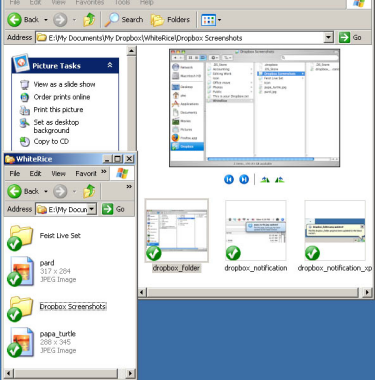
Dropbox screen shot from Peter's Useful Crap
 
  • Backs up your documents and photos and other files you choose
  • Does not back up the operating system
  • Backs up to the cloud
  • Advantage: you can choose to allow others to access select files, or you can keep it all private. You can also drop files here from multiple computers in multiple locations.
  • Disadvantage: This is actually a file-sharing program, so security is not its strong suit. Dropbox did get hacked recently. They also have limited storage space, unless of course you're willing to pimp out your friends. If you do that enough times, they'll give you more storage space.

True Image by Acronis
http://www.acronis.com/homecomputing/products/trueimage/
$50 one time


Acronis screen shot from PCWorld

  • Backs up all files including your operating system so you'll have a restore point
  • Backs up to the cloud, or to an external drive, or to a networked drive, or to any or all as you choose
  • Advantage: also backs up applications
  • Disadvantage: if you're running other backup programs, this might interfere with those. But this seems so complete, would you really need other backup software?
  • Maybe an advantage, maybe a disadvantage: the backup file created is one big huge image file.  You want an image file to restore a hard drive, so that's good.  But that also makes it a little difficult to tell exactly what it's saving in there.
  • Recommended  heartily by the PC tech guy who restored my files

MagiCure Professional
http://www.magicuresoft.com/
$69 one time


MagiCure screenshot

  • Backs up all files including your operating system so you'll have a restore point
  • Advantage: backs up to your hard drive. In the event of hard drive problems, press Home during startup to access the console. This gives you kind of a built-in safety net for your hard drive, and you wouldn't need to go to another system to rescue it. People who've used it say it's really fast. 
  • Disadvantage: backs up to your hard drive. If something other than a crash happens, like for example your laptop gets stolen, or it gets shot full of bullet holes, the fact that you have a back-up on the now-absent or bullet-shot hard drive will do you no good.

For the Mac

Time Machine
http://support.apple.com/kb/HT1427
Free


Time Machine screenshot from Macs Are Great!

  • Backs up all files including your operating system so you'll have a restore point
  • Recommended by my IT friend, who had to use it to restore a Mac at work.  With this, he got the defunct Mac back to its previous working state in only 3 hours. 
  • Leave it to Mac to come up with a succinct and easy-to-use solution for a problem that affects everybody.


These are just a few of the options out there.  Is there a back-up program that you think is terrific that's not on my list?  Let us know in the Comments.


Sources
CNET reviews of  FBackup, MagiCure Professional, True Image by Acronis, and lots more

Monday, August 20, 2012

Apple #599: C:\ Drive and 404 Not Found

Now that the Olympics has ended (sigh), it's time for me to get caught up on a few requests.  I've got one that comes from a reader and one that comes from me.  Since they're both computer-related and brief, I'm combining them into one entry.

C:\ Drive


C:\ command prompt
(Image from DeviantArt)


Regular Daily Apple reader Jeremiah wants to know, why are computer hard drives labeled c:\?  Why not a:\ or q:\ or any other letter?

Well, I know why it's not called a:\. Those were floppy drives.  But why the hard drive isn't called any other letter of the alphabet, I don't know.

  • The reason it's called c:\ turns out to have about as much thought behind it as, because floppies were called a:\.
  • IBM came up with this naming convention.  Way back in the days of the first computers, there really wasn't a thing like a hard drive -- at least, not the way we know hard drives today.  Most of the information was supplied by some external source, like a floppy disk.

 
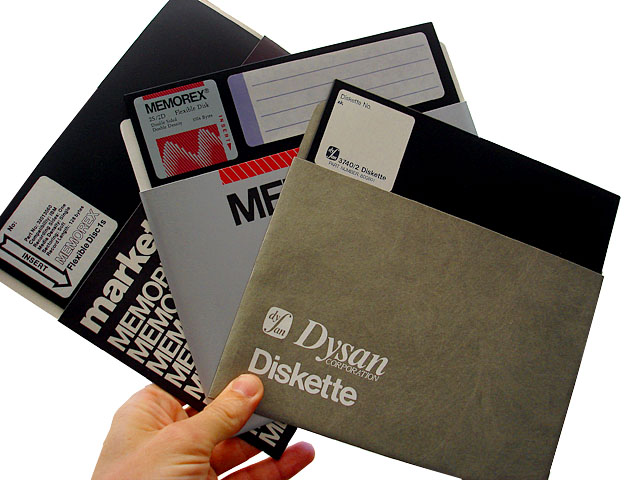
The 8-inch floppy disk. First introduced in 1971, with storage capacity of about 100K.
(Photo from Old Computers.net)

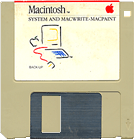
The 3 1/2 inch floppy disk, first introduced by Sony in 1980.
(Photo from Old Computers.net)

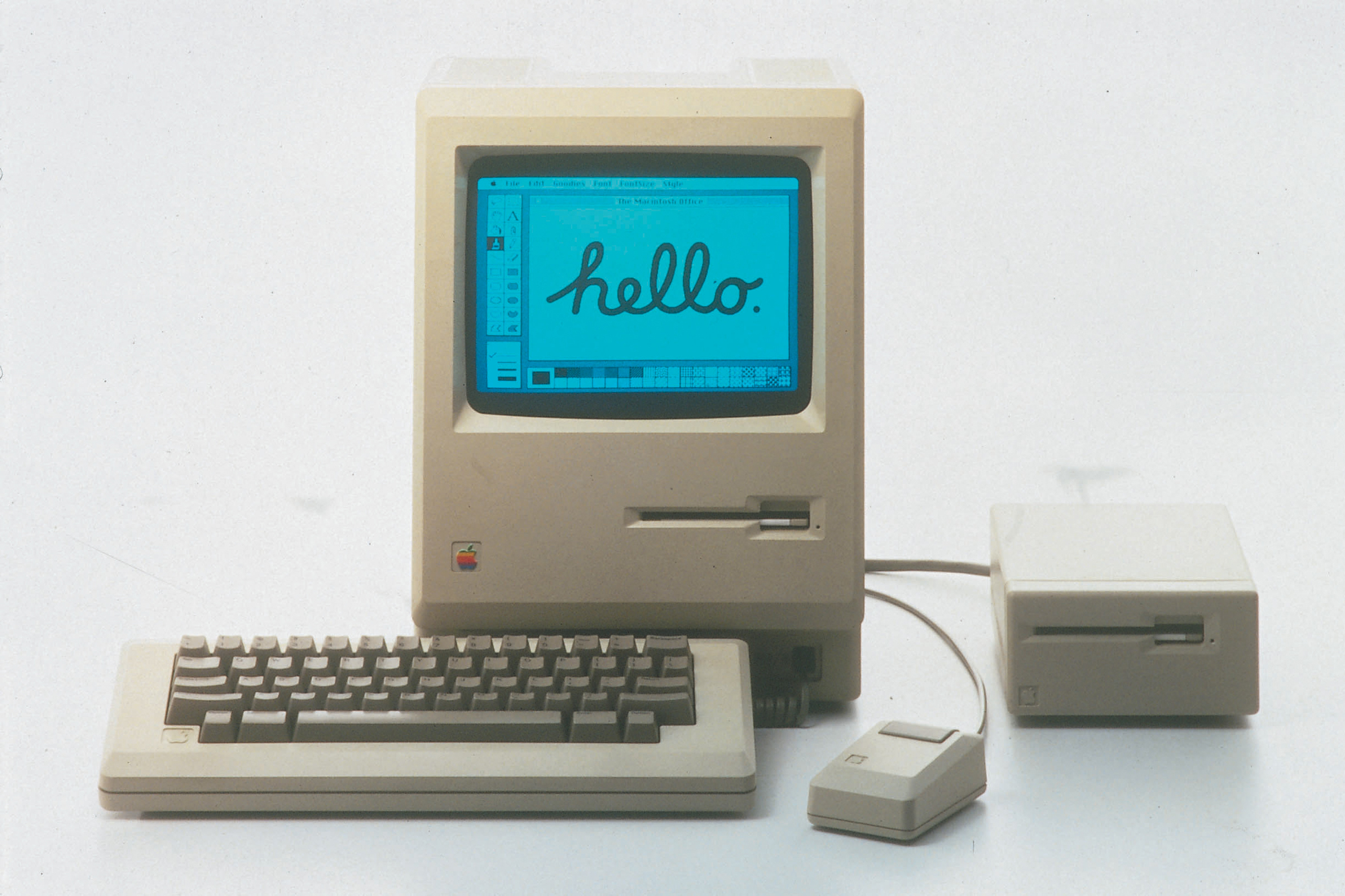
This is a Macintosh (circa mid-1980s) with a floppy drive visible in the front.
(Photo from Only HD Wallpapers)

  • Since floppy disks were usually what you needed even to boot the computer, their drives were called a:\.
  • As computers got more advanced, they began to require users to load one floppy disk, switch to another and load that, and sometimes switch back to the first.  So it became convenient to add a second floppy drive, called -- you guessed it -- b:\.
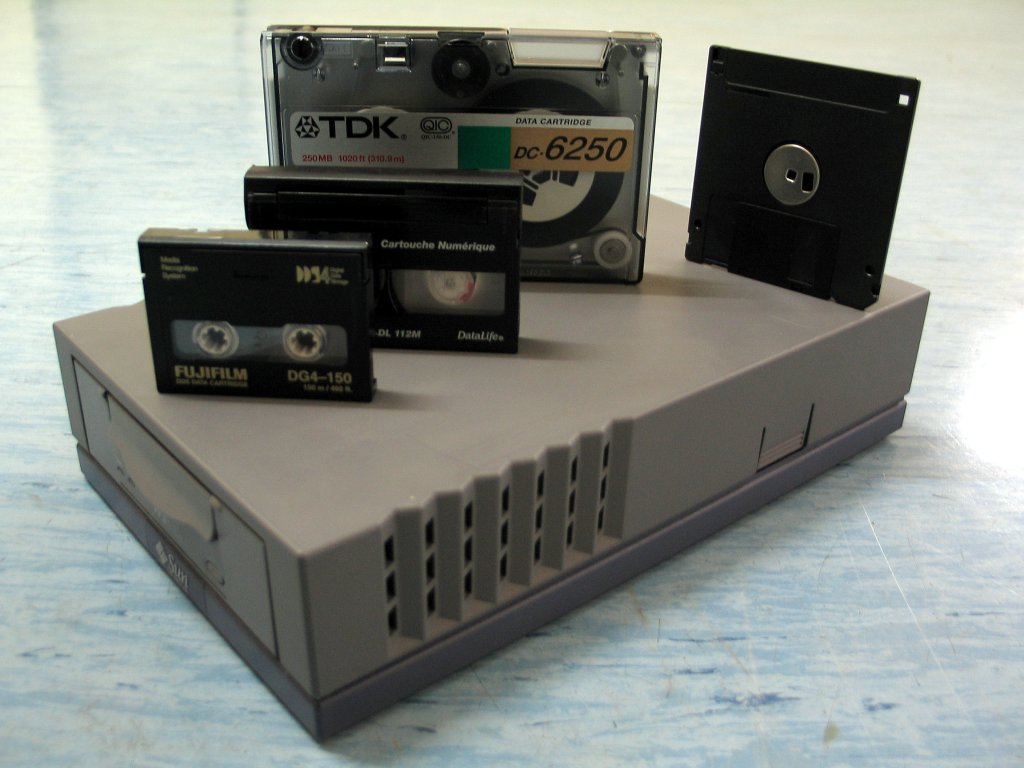
  • Some people, when they tell this story, say that the b:\ drive was for a different type of external media, namely, tape drives.  Tape drives obviously had different dimensions and specifications than a floppies, so they needed a different drive altogether to handle those, and thus, those got called b:\. 


Various versions of magnetic storage tape (not cassette but computer), with a floppy at far right, all sitting on top of a tape drive.
(Photo from Wikipedia)

  • I'm not sure which of the two versions is more reputable -- b:\ drive is second floppy or b:\ drive is tape drive -- so I'll leave it to you to decide which tale you prefer.
  • Hard drives, which came along a little later, got the next available letter, c:\.
  • People have wondered, now that there aren't floppy drives anymore, and very few people use tape drives -- or even mention b:\ drives -- why not bump the hard drive up to a:\?
  • Answer: because every computer-related thing is standardized to look for the hard drive at c:\. Software, hardware, peripherals, you name it, when it wants to find the hard drive, it says, "C:\? Where are you?" If the hard drive were re-named anything else, c:\ would go unfound. It would wander, lost and lonely, through the world of computers, friendless and disconnected....

404 Not Found
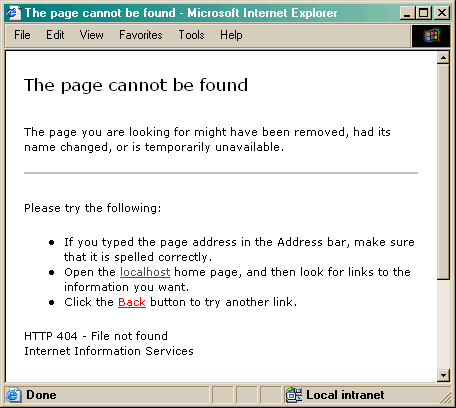
This is the closest I could find to what I remember about how the 404 Not Found message used to look.  Ah, Netscape. Remember Netscape?  Good times.
(Image from AlphaSoftware)

  • Speaking of things not found, I wanted to know why that web error message you used to get -- not so much anymore, but every once in a while it does pop up -- had that number 404 at the beginning.
  • Once upon a time, long long ago in 1992, the World Wide Web Consortium (but mainly some guy named Tim Berners-Lee) came up with a list of codes, each of which stood for a different type of web browsing event. If some web page wasn't able to display anything helpful, it would at least display a handy 3-digit number that would tell you what was going on. The codes are specific enough so that, if there's some problem in communication, the code displayed would tell you where the communication broke down.
  • The codes were based, by the way, on FTP status codes. Those go all the way back at least to 1985, if not longer.
  • There are 5 categories of status codes. The first digit indicates the category.  The categories are as follows:
    • 1xx = Informational. Request received, continuing process
    • 2xx = Success. Action was received, understood, and accepted.
    • 3xx = Redirection. Needs further action to process the request.
    • 4xx = Client error. The request contains bad syntax or cannot be fulfilled.
    • 5xx = Server error. The request is apparently valid, but the server failed to fulfill it.
  • Since the 2xx's indicate success, you would hardly ever see a 2xx code.  The 4xx's mean that something about the request you made didn't work.
  • The second & third digits work together as in, "01" "02" "03" or "10." Some of the categories only go up to "07" or "05" or even only as far as "01." The 4xx's -- the "it's your fault" codes -- go all the way up to "17." Of course. Always blame the user.
  • What seems to be counter to "it's your fault" is that the 4xx's are also considered transient errors. Meaning, this is the information we're getting from the server at the moment. But if you try again a bit later, your request might work after all.
  • Here are the codes for the 4xx's:
    • 400 = bad request
    • 401 = unauthorized
    • 402 = payment required
    • 403 = forbidden
    • 404 = not found
    • 405 = method not allowed
    • 406 = not acceptable
    • 407 = proxy authentication required
    • 408 = request timed out
    • 409 = conflict
    • 410 = gone
    • 411 = length required
    • 412 = precondition failed
    • 413 = request entity too large
    • 414 = request URI too large
    • 415 = unsupported media type
    • 416 = requested range not satisfiable
    • 417 = expectation failed.
  • Some of those seem redundant, but other seem like they would be just as useful as 404, if not moreso. Some, like 401 payment required or 401 unauthorized, seem like they would still come in handy today. I might have seen 400 maybe once.  But I don't think I've seen any of the other ones ever.


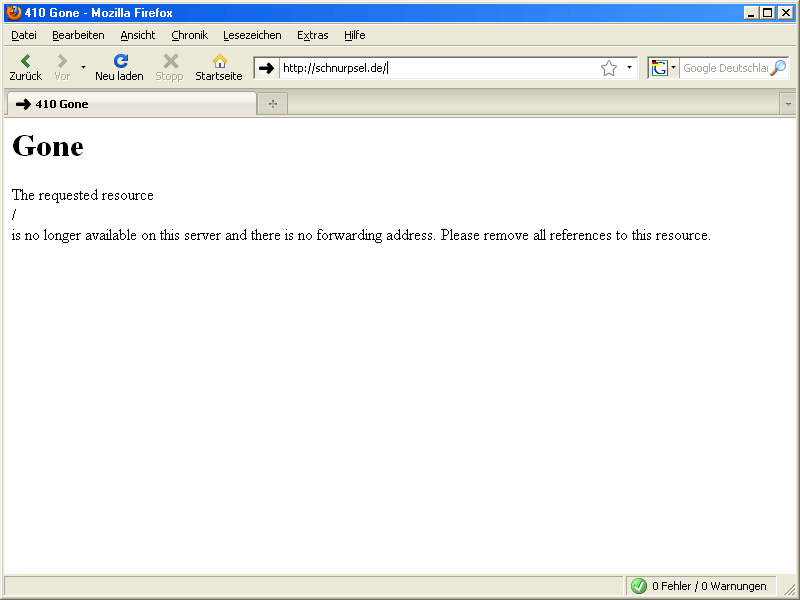
Well, I'll be dipped. Somebody did get a 410 gone. This is from Germany, though, so maybe that explains it. German precision engineering and all that.
(Image from Schnurpsel, which word I did not make up, I promise.)

  • But the point is, why, if there are all of those "it's your fault" codes, did we only ever really see 404?


Getting a little more current, another 404 Not Found display.
(Image from ZackTheTech)

  • It's rumored that 404 was named after a room at CERN, where the original web servers were located. But that rumor is incorrect. There isn't even a room numbered 404 at CERN.
  • The truth seems to be that 404 turned out to be a very handy catchall. It means that you've done something wrong, but it's not being very specific about what that problem is. Maybe you mistyped something, but it's not sure. It also can't say for sure whether the page or sever you tried to access is permanently gone or disabled. All it knows is it couldn't make the connection. 
  • In fact, it's not really sure about anything, just that there's a problem. If you try again, though, it might work. Or it might not,
  • That's a pretty handy error message:  "It's not working and we're not sure why! But try again and see what happens!"


This is what the 404 Not Found screen looks like these days.  You can see the 404 status code at the bottom of the window.
(Image from Evagoras Charalambous) 


  • Actually, these status codes are still in use today. In fact, there are now extended codes, which add a decimal point and another digit after the 404 to give you more detail about why you got the 404. Not every site will use the extended codes, but some do.
  • From the web developer side of things, if you can access the log files for a website, you'll see that one of the fields indicates the HTTP status code. This page parses the data you'll see in log files and points out where the status code appears.
  • I think I need to employ 417 Expectation Failed on a more frequent basis.

Thursday, April 1, 2010

Apple #448: Jeopardy

To all you faithful Daily Apple readers, I'm sorry I missed my usual Sunday night post.  I went out of town over the weekend and unexpectedly had to stay an extra day.

Worry not.  Here's a fresh entry.

A jaguar wearing jodhpurs in the jungle may attack the jugular, and then you'd really be in jeopardy.

  • You probably already know what "jeopardy" means, but to be thorough, here is the official definition:  danger of loss, harm, or failure.  So you're basically teetering on the edge of death.  Or failure, either one.
  • The word comes from a French phrase used in chess:  ieu parti. Those of you who read the initial entry on the letter J won't be that surprised to see an "i" there where in English, it's a "j."
  • The phrase means the game is evenly divided.  That doesn't sound much like our meaning of the word "jeopardy," but wait, there's more.
  • Specifically, it means you've just made some kind of risky or dangerous move and now you must wait for your opponent to move.  Depending on what happens next, you could win or lose the game.  A tame way of putting it is to say that your chances of winning or losing are evenly divided.  A more dramatic expression is to say that your fate hangs in the balance.

This is more like how we usually think of "jeopardy," rather than in terms of a situation in chess.  This movie, by the way, is titled Jeopardy. In it, Barbara Stanwyck's husband gets his leg trapped under some logs so she goes to find help but unfortunately gets kidnapped.  Can she free herself in time to save her husband?
(Image from IMP Awards)

  • You can't talk about the word "jeopardy" without discussing the uber-popular game show, Jeopardy!
  • As of August 2009, the game show averages 9 million viewers each day.
  • Alex Trebek has won five Daytime Emmys in his role as host.  Has has hosted the show since 1984.
  • You've probably heard of Ken Jennings, who won the highest number of consecutive games -- 74 in all.  He took home over $2.5 million.
  • But someone else won more money than he did: Brad Rutter from Lancaster, PA.  Combining his winnings from his original appearance in 2002, plus what he won in two tournaments, he took home over $3.25 million.

All those screens hold so many questions. Or should I say answers.
(Photo from jimmylin.com)

  • The "Clue Crew" are three people who travel around the country and the world to find new places that hold new questions for the show.
  • But the majority of the behind-the-scenes work is done by a group of people at home.  Six researchers and ten writers put together the categories and create the questions.  I find it pretty impressive that only sixteen people come up with that much information on a regular basis and in what seems to be a fairly short amount of time.
  • If you think that's impressive, consider what the contestants do each and every show.  To put that in perspective, let's talk about supercomputers for a moment.  Trust me, it's relevant.
  • You may remember that IBM built a computer, Deep Blue, which was programmed to play chess.  It did so well enough that in 1997 it beat the chess world champion, Garry Kasparov.  Kasparov protested the match and later played a different version of the program, and that game finished in a draw.  Too late, though, most people remember that the computer bested the best human at chess. 
  • Now IBM has taken on a new challenge.  Chess, they said, is old hat.  They are now aiming to write a program, called Watson, that can beat humans at the game show, Jeopardy!
  • (I'm going to state the obvious and point out that IBM is moving from a chess game to another game which is named after a move in chess.  Conscious choice on someone's part, or sheer coincidence?  Here's some more synchronicity for you: You can answer Jeopardy! questions about chess here.)
  • IBM's Watson will have to understand English, plus lots of complexities such as puns, analogies, alliterations, double entendres, irony, riddles, and other complex relationships among concepts.  It will have to search among the information it has stored to arrive at an answer, an answer in which the computer has "confidence" or thinks is right, and take a chance on buzzing in.  It must do all of this at lightning speed -- or at least more quickly than humans can ring in on their buzzers.
  • To accomplish all this, it's going to run on hardware similar to IBM's BlueGene system which reaches speeds in terms of teraflops and petaflops.  In 2007, BlueGene could run 445 million million, which is 45 followed by 12 zeros, calculations per second.  That's uber-fast because it's uber-big.  IBM estimates that this project alone will cost somewhere between $900 million to $1.8 billion in R&D funds. 

IBM's BlueGene at Lawrence Livermore Laboratory in 2007.
(Photo by Lawrence Livermore, sourced from IBM)

  • IBM is hoping to conduct the formal challenge by the end of 2010, or maybe early 2011.  So far, Watson has succeeded in answering factual questions such as, "Bordered by Syria and Israel, this small country is only 135 miles long and 35 miles wide," and answering, "What is Lebanon?"  It does not do so well with questions that require subtleties of identification, such as "This Ziegfield star was portrayed in the film Funny Girl."  Watson answered "Who is Barbra Streisand?" but the correct response should have been, "Who is Fanny Brice?"
  • Put in this perspective, it's pretty remarkable that human contestants on the show do this level of processing well enough and fast enough that they get the answers to the questions correct about 85% of the time.
  • I'm trying to put the various parts of this entry together.  Is the moral of this story that in order to keep yourself from jeopardy, you have to be really smart?  Or does being really smart put you in jeopardy? 
  • Or maybe the only conclusion to draw is this one:  This pop hit reached number 2 on the charts in 1983 and was later spoofed by Weird Al Yankovic.  Baby.  Ooh, ooh ooh ooh.


On that note, I am going to conclude my series on words that start with the letter J.  Hope you enjoyed it.


Sources
Compact Oxford Dictionary, jeopardy
My trusty micrographically reproduced two-volume set of the Oxford English Dictionary
Jeopardy.com, Show Guide, About the Show
John Markoff, "Computer Program to take On 'Jeopardy!'" The New York Times, April 26, 2009
IBM, Watson Takes on Jeopardy!
JR Raphael, Meet Watson, IBM Supercomputer and Future 'Jeopardy!' Champ, PC World, date unknown
David Goldman, Facing off against IBM's 'Jeopardy! computer, CNNMoney, June 26, 2009
Argonne's green BlueGene/P gets more muscle to address most challenging scientific problems, Argonne National Laboratory, November 2007

Thursday, February 28, 2008

Apple #301: Adbaaz crap

I just got the word that a lot of you have been getting redirected by some sort of hijacking code to something called adbaaz.com. I have looked into it and according to my tests, the problem has been fixed. But if anybody still experiences any weirdness, let me know.

Here's what was going on.

Apparently, this lovely little gem finds javascript code that has been written into the templates of various blogs and websites. It corrupts that code so that, instead of running its usual javascript happiness, it instead redirects people to this stupid and useless web page.

If you are a blogger or a web page author, to make it stop, you have to figure out which javascript code in your template it has corrupted. That can be a tricky proposition.
  • Some people have addressed the problem by deleting all javascript code from their templates. To me, that's a slash & burn approach that didn't seem necessary.
  • When the adbaaz was working its idiocy on my site, the username for my Sitemeter statistics was appearing in the redirected url and at the top of the page where it sent me. So I figured it was the code for Sitemeter that it had corrupted.

A screen shot of what adbaaz did to someone else's page. See the Websourcedtraffic.com up in the left corner? I'm willing to bet that's the code that adbaaz corrupted.
(screen shot from dudesdoingdotnet's blog)


  • So I deleted the page element widget for Sitemeter from my Blogger template. I then re-loaded the Daily Apple, and adbaaz did not work its stupid magic and the Daily Apple stayed loaded. The case, as Inspector Clouseau would say, was solv-ed. Mostly.
  • I was going to add a new page element and simply paste the Sitemeter code back in, but that option to Add a Page Element wasn't appearing. I checked Blogger's Help pages for suggestions, and it said the absent Add a Page Element option was a known issue.


To add widgets for javascript and other things you want to put into your frames, go to Layout and choose Page Elements, and click Add a Page Element. In my case, that link to Add a Page Element was missing.

      • The reason Add a Page Element wasn't there, Blogger help said, might be because the URL was using a www2 instead of just a www, and deleting the 2 would take care of it. That wasn't what was going on in my case.
      • The other reason, said Blogger help, was that some javascript had been entered directly into the template, and that it should be removed from the template and placed into a page element.
  • Well, if I couldn't add a page element, how was I supposed to move the javascript into it? (grumble, grumble)
  • I thought I'd try to cheat the thing, and I copied my javascript code for Sitemeter into the end of my template. But Blogger wouldn't allow me to save those changes.


To edit the HTML code for your template in Blogger, go to Layout and click HTML. I scrolled all the way to the bottom and pasted the Sitemeter javascript at the end, but Blogger wouldn't allow me to save the template when I did this.

  • So I deleted the code I had just pasted in there and navigated away without re-saving the template. Strangely enough, when I went back to the layout page, it was now giving me the option to add a page element.
  • So I added a page element, pasted in the Sitemeter javascript code, saved the changes, and checked the results. No more adbaaz.

If you are a web page viewer
and you're getting the adbaaz effect when you try to view this or any other page, I highly recommend a particular plugin. It was developed for Firefox (obviously, I therefore recommend Firefox), but if you don't use Firefox, a similar option might have been developed for other browsers.
  • The plugin is called NoScript. It keeps things exactly like this pestilential adbaaz from hijacking any javascript code and doing things with it that you don't want it to. Because I'm using NoScript, I was not aware that adbaaz suppressing my Daily Apple. But when I turned it off, then I saw it at work (in all its pointless splendor).
  • The only downside to NoScript is that it works a little too well. It automatically blocks things like YouTube and Adobe PDFs. But it puts a little S in a circle in the bottom corner of the browser, and by clicking on that S, you can access a pop-up window that allows you to permit the various javascript items to work. So you could tell NoScript to always allow YouTube, for example, or each time you go to a YouTubey page, you could tell it to allow that page in that instance.
  • Even so, get the NoScript if you can. It helps.
Now, no thanks to adbaaz, you can get back to enjoying the Daily Apple and reading all about crayons and other goodies.

Saturday, July 21, 2007

Apple #255: Norton 2007 and SpySweeper Don't Mix

For nearly a month now, I've been trying to resolve installation problems that happened after I renewed my subscription to Norton. I signed up for Norton SystemWorks Basic and Norton Internet Security. I think I even paid an extra $5 and increased the functionality or features of one of them.

But I had the following problems:
  • Because my computer has a "multi-boot setup or hidden recovery partition," one feature called GoBack won't install. GoBack tells your PC to revert to the way its hard drive used to be before some chaotic event. I could live without it, I guess, but a link in the error message suggests that maybe it could be installed after all. So, which is it -- yes GoBack or no GoBack?
  • LiveUpdate was not updating automatically, which is what it's supposed to do, and then when I tried to make it update, I got error messages and was told to download something called Intelligent Updater, which neither worked nor was intelligent.
  • The status of Norton Internet Security was continually at an exclamation point / danger-red "FIX NOW" state. It told me the reason for this was that it needed new Protection Updates. When I told it to get those Protection Updates, it happily ran LiveUpdate again, downloaded a bunch of stuff, and then reverted right back to its danger-red FIX NOW status.
  • Norton Anti-Spam, which was part of Norton's 2006 package, seemed to have disappeared.

Norton Internet Security 2007, culprit #1.


I re-downloaded, I cleaned my downloads, I re-installed, I restarted a kajillion times, but still these problems persisted. So I contacted Technical Support. Hah.

I chatted. It didn't take long to figure out I was chatting with a robot, not a person. So I e-mailed. Again, a robot e-mailed me back. I asked if a person could respond. I got a person, but he responded to one of my four questions, and then gave me the same (incomplete) suggestion I had found on Symantec's byzantine, labyrinthine, and ultimately inadequate help pages.


Norton SystemWorks Basic edition, culprit #2
Actually, compared to all the problems with
Internet Security, this was relatively bug-free.
Except for that one problem with GoBack.


Well, that was about three weeks ago. I won't take you through the minutiae of the rest of the frustrating, irritating, exasperating, and infuriating attempts to resolve the problem with Symantec's technical support. I have never, ever lost my temper with any tech support people -- not the phone company, not the gas company, not the cable company -- the way I lost my shit with these people. I was shouting at them. I was pounding on my desk, telling them I would not be hung up on again, I was not going to be ignored and have my questions half-answered, they were going to stay on the phone with me until the problem was fixed.


Sutherland, the company that provides Symantec's
technical support, is perhaps the biggest culprit of all.
Dear Symantec: this might make your bottom line happier
for the moment, but in the long run, it will be red raw,
because THIS AIN'T WORKING.


Five phone calls, five tech support people, three new program installations and two passes with the Norton Removal Tool which is supposed to remove all things Norton from my hard drive to allow for a clean re-install, three instances of shouting, and SIX AND A HALF HOURS LATER, I started to get some real information. I learned that SpySweeper, which I have also paid for and installed on my PC, is not compatible with Norton's 2007 products. The technician was trying to tell me that SpySweeper, Trend Micro AntiSpyware, and Ad Aware SE -- all of which are running happily together on my PC -- all do exactly the same thing as Norton and that it is unnecessary for me to have all these on my PC.

You know, maybe it is a bit of overkill. But the last PC I had got besieged by spyware and was killed completely in a very few days. Some of those anti-spyware programs removed some of the spyware, but not one was sufficient to the task on its own. They each removed different spyware programs, which convinced me that while they each have a little corner of the spyware world covered, nobody has even half of it under control. So, no, I'm not going to remove any of my programs. And it's not my fault, or the fault of SpySweeper or anybody else, that Norton was built so that it doesn't play nice with others.

The reason this version of Norton doesn't play nice is that they've added an anti-spyware feature. I'd like to use other elements of Norton's system and disable the anti-spyware feature, but now I don't even have that option because after the fifth tech support's hard work, NEITHER NORTON PROGRAM IS AT ALL FUNCTIONAL. They both open, but more than half of the features are greyed out and nothing happens when you click on them. Nada.

So, what that technician did convince me of is that Norton 2007 is a big bully on my hard drive. She said that though she or any other technician might do their best to resolve the problems, Norton 2007 still might never install properly as long as I have SpySweeper on my PC. At first, she was trying to be diplomatic about it and said that she was not trying to convince me to abandon these other software programs. But after she deleted all things Symantec or Norton off my hard drive -- even going into the registry and deleting several files manually -- and then re-installed not once but twice but to no avail, she began to list to me the programs I had on my PC which "were not necessary" and said that I should remove them from my hard drive.

That's when I started shouting.

Well, she hung up on me. But by this point, I realized I'm done, too. I'm going to contact Symantec (somehow; they hide behind their "tech support" links, which connects you with Sutherland-hired people in India, not Symantec), and demand a refund.

Because not only were there all these problems with installation, it also turns out that:
  • In spite of downloading an additional program called Add-On Pack, which is supposed to put Norton AntiSpam back into the mix (at the request of many disappointed customers), Norton AntiSpam didn't work. It found my e-mail program, it found my address book, it found my e-mail address. But it never appeared anywhere in my e-mail program. I followed all of Symantec's online suggestions to click and unclick on my software program in the configuration screen and then re-started, but to no avail. AntiSpam still doesn't show up in my Microsoft Outlook.
  • Though some links in the error message about GoBack's failure to install suggested that there might be some secret work-around to get GoBack to install in spite of my unfortunate "multi-boot setup or hidden recovery partition," in actual fact, I'm SOL as far as GoBack is concerned. Though none of the tech support people ever answered this question, even though I asked it of every single person I spoke to.

But I don't suppose the functionality of either of these features matters because now I can't even get either @#&!@@! program to function at all.

Then, just a few minutes ago, when I'd just about given up on the whole Norton venture entirely and was about to close down my system, lo and behold, LiveUpdate blissfully began to run. Though with only dysfunctional, half-installed, Frankensteinish software to update, it was downright silly.

When I'm calm again, I'm going to find another program that protects against viruses (looks like SpySweeper has that capability; I only need to enable it), and another one that sits in my e-mail and keeps out the spam. Then it's good-bye Norton.


--UPDATE--
I did write to Symantec's refund department, and I cc'ed the members of the Board of Directors, describing what I had experienced, telling them they had lost a customer forever, and asking them to refund my money. About a week later, I got an e-mail from an actual person, asking what she could do to help. Well, if she'd read my letter, she would have known what she could do. I also got -- you guessed it -- an automated e-mail. The automated message said my credit card would be credited the purchase price that day (this was in September), but I should allow 30 days for it to be processed.

Within about a day or two, they did give me my refund, at least.


I'm Not the Only One
  • Also click on the comments to that InfoWorld article to read more gripes and warnings about various customers' experiences with Norton + SpySweeper
  • njbay, Symantec Sucks njbay's emails to Symantec support are all too familiar . . .
Looks like a lot of people are saying that if you remove Webroot from your system first, before installing Norton Internet Security 2007, and then reinstall Webroot, both can co-exist. I'm all out of patience with this whole thing so I'm not going to mess with my Webroot as well as my Norton crap, but if you want to give this suggestion a try, please do. And let me know if it works!


Symantec Customers Not Happy about No AntiSpam in Internet Security 2007

Symantec Support Pages that Gave Erroneous Advice or Installed Programs Insufficient to the Task
  • Clean Download is supposed to fix problems with incomplete downloads. Actually, this one did work.